Tech · How-to
How to Create a Wi-Fi QR Code So Guests Can Connect Instantly
· By Tools Bucket Team · 4 min read
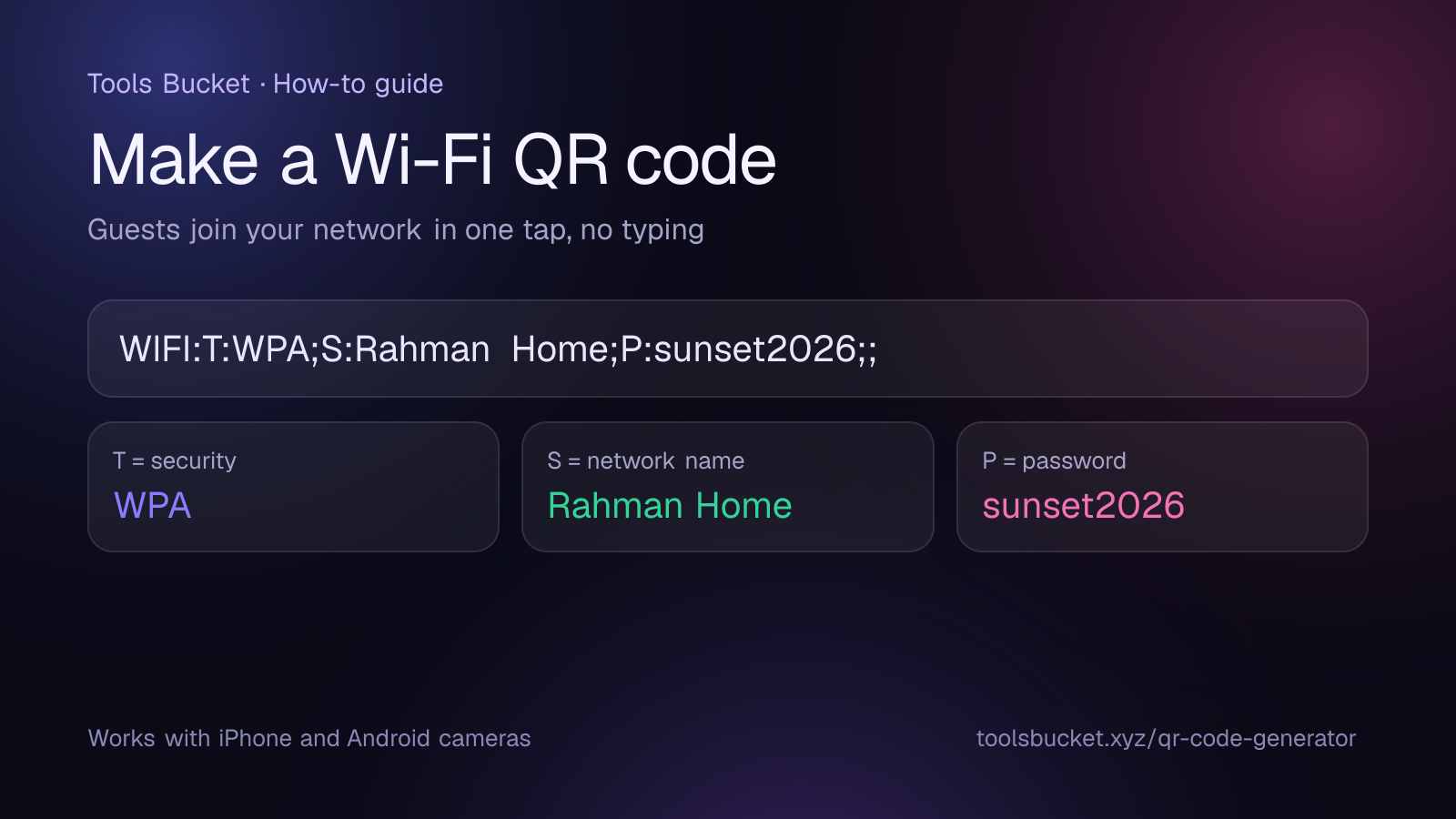
Reading out a long Wi-Fi password to every guest gets old fast, especially when it's something like "k7#Ptr9!vQ". A Wi-Fi QR code fixes that: guests point their phone camera at it, tap once, and they're connected. No typing, no spelling out symbols. Here's how to make one for free in about a minute, and how to keep it secure.
How a Wi-Fi QR code works
It isn't a link to a website. It holds your network details in a special text format that phones recognize:
WIFI:T:WPA;S:YourNetworkName;P:YourPassword;;
- T is the security type:
WPA(this also covers WPA2 and most WPA3 networks),WEPfor very old routers, ornopassfor an open network. - S is your network name (the SSID), exactly as it appears in the Wi-Fi list.
- P is the password.
- The two semicolons at the end close the code.
When a phone camera sees this pattern, it offers to join the network. iPhones (iOS 11 and later) and most Android phones (Android 10 and later) do this straight from the built-in camera app. The format comes from the open-source ZXing barcode project, which documents it in its guide to barcode contents.
How to create a Wi-Fi QR code in 4 steps
- Find your exact network name and password. Check your router's sticker or its settings page. Both are case-sensitive: "HomeWiFi" and "homewifi" are different networks.
- Type the Wi-Fi text. Replace the name and password in the template above. For a network called Rahman Home with the password sunset2026, you'd type:
WIFI:T:WPA;S:Rahman Home;P:sunset2026;; - Paste it into a QR code generator. Our free QR code generator turns any text into a code instantly, right in your browser, so your password isn't sent to anyone.
- Test it before you print. Point your own phone at the screen and check it joins the network. Then download the PNG and print it.
Special characters in your password
If your network name or password contains a semicolon, comma, colon, double quote or backslash, put a backslash in front of that character so phones don't misread it. For example, the password pass;word becomes pass\;word inside the code. Letters, numbers and symbols like !, # or @ need nothing special.
Hidden networks
If your network is hidden (it doesn't appear in the Wi-Fi list), add H:true; before the final semicolons:
WIFI:T:WPA;S:Rahman Home;P:sunset2026;H:true;;
Where to put your code
- At home: on the fridge, in the guest room or next to the router.
- In a café, shop or office: on table tents, at the counter or on the waiting-room wall, with a short line like "Scan to join our free Wi-Fi".
- For events and holiday rentals: in the welcome pack, so guests are online before they've unpacked.
Print it at least 3 cm (about 1.2 inches) wide, in dark ink on a light background, and leave a blank margin around it. Our guide on how QR codes work explains why size, contrast and that margin matter.
Is a Wi-Fi QR code safe?
The code contains your password in plain text, so anyone who scans it (or photographs it) can read it. That's fine for guests you'd happily give the password to anyway, but think about where you place it:
- Use a guest network if your router has one. Most routers let you create a separate network for visitors, which keeps them away from your computers, printers and smart devices. Put the guest network in the QR code, not your main one.
- Don't display it publicly if it's your main home network.
- Change the password now and then, especially after a party or when a tenant moves out, and simply print a new code.
- Use a strong password. The code means nobody has to type it, so there's no excuse for a short, easy one. Our password generator can create a long random password in one click.
Troubleshooting: the phone won't connect
- "Unable to join" or nothing happens: check the network name and password for typos, including capital letters and spaces.
- Old router: if your router only supports WEP, change
T:WPAtoT:WEP. - The camera doesn't react: some older Android phones need Google Lens or a separate QR scanner app.
- Still stuck: regenerate the code with the text typed fresh, then scan it from the screen before printing.
Quick recap
- The code stores
WIFI:T:WPA;S:name;P:password;;so phones can join in one tap. - Type your details into that template, paste it into a free QR code generator and test it before printing.
- Escape special characters with a backslash, and add
H:true;for hidden networks. - Anyone who can see the code can read the password, so use a guest network where possible.
Comments
No comments yet — be the first to share your thoughts.