Security · Passwords
Passkeys vs Passwords: Should You Switch in 2026?
· By Tools Bucket Team · 4 min read
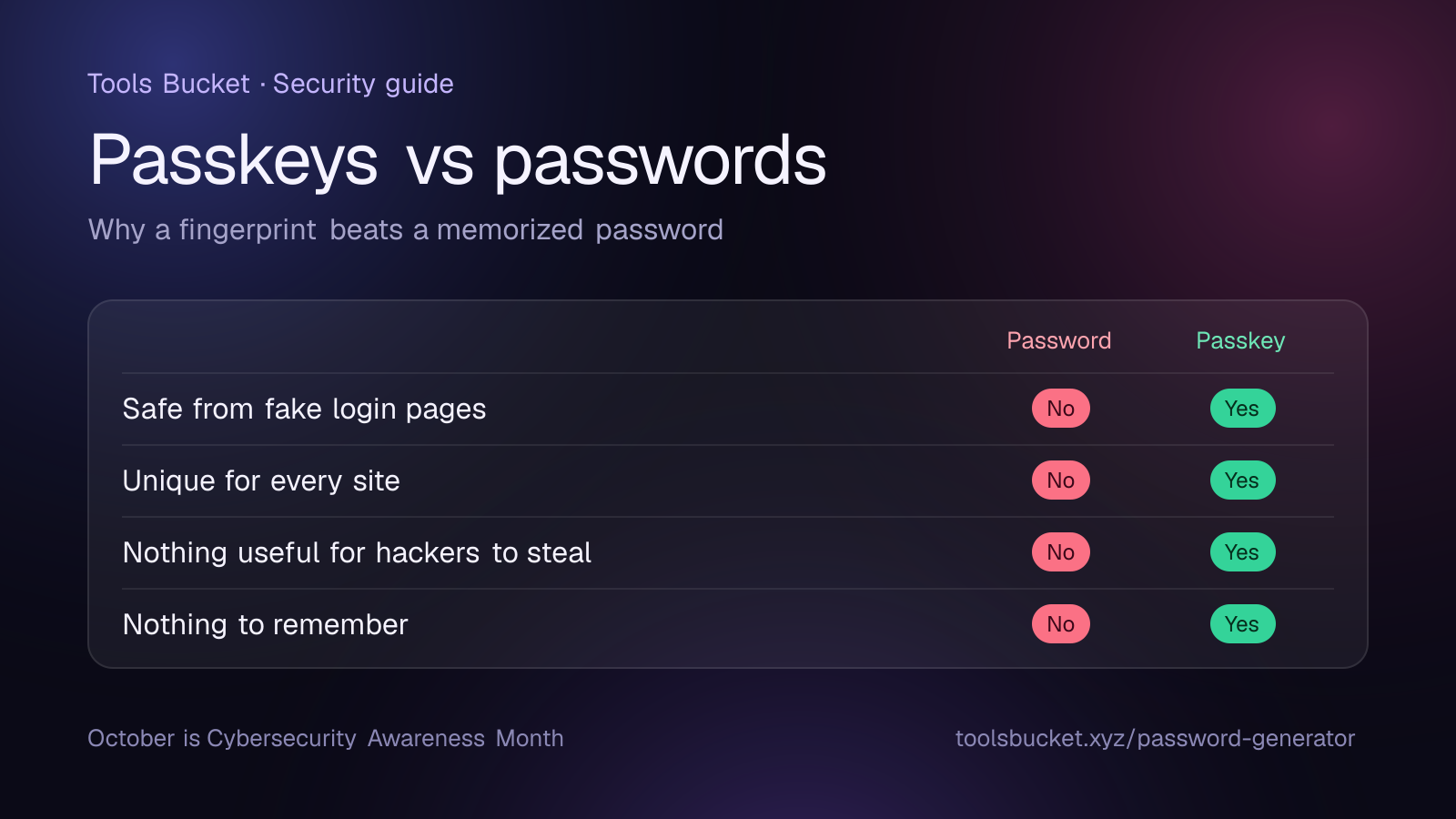
If a website has recently asked you to "create a passkey", you're not alone. Google, Apple, Microsoft, Amazon, PayPal and hundreds of other services now offer passkeys as a way to sign in without typing a password at all. October is Cybersecurity Awareness Month, so it's a good moment to ask the obvious question: are passkeys actually better, and should you switch?
The short answer is yes, where you can. But passwords aren't going away just yet, so it's worth understanding how both work.
What is a passkey?
A passkey is a sign-in method that replaces your password with a pair of cryptographic keys. When you create a passkey for a website:
- Your device creates a private key that stays with you, stored on your phone or computer, or in your password manager.
- The website stores only a matching public key.
When you sign in, the site sends your device a challenge, your device signs it with the private key, and the site checks the signature with the public key. You approve it the same way you unlock your phone: with your fingerprint, your face or your device PIN. Your fingerprint never leaves your device; it only unlocks the key.
Passkeys are built on open standards from the FIDO Alliance and the W3C, which is why they work across different websites, browsers and operating systems.
Passkeys vs passwords: the key differences
| Password | Passkey | |
|---|---|---|
| What you have to remember | The password itself | Nothing: your device handles it |
| Can it be phished? | Yes, on any look-alike site | No, it only works on the real website |
| Damage if the site is hacked | Your password (or its hash) can leak | Attackers only get a public key, useless on its own |
| Reused across sites? | Often, which is risky | Never: every passkey is unique |
| Sign-in speed | Type it, then often a code | One fingerprint or face scan |
The biggest win is phishing resistance. A passkey is tied to the exact website it was created for, so even if you click a perfect fake login page, your device simply won't offer the passkey there. With passwords, a convincing fake page is all an attacker needs.
Are there any downsides?
Passkeys are a big step forward, but they come with a few practical catches:
- Not every site supports them yet. Most of your accounts will still need a password for a while.
- Losing your device. If your passkeys live on a single phone and it's lost, you'll need a recovery method. The fix is to store passkeys in a synced password manager (like iCloud Keychain, Google Password Manager or a third-party manager) and keep a backup sign-in option on important accounts.
- Switching ecosystems. Moving passkeys between, say, Apple and Android has been clunky. It's getting easier as the industry adopts a standard way to transfer them, but check before you switch phones.
- Shared computers. On a computer that isn't yours, you can still sign in by scanning a QR code with your phone, but it takes a moment to get used to.
Should you switch to passkeys?
For your most important accounts (email, banking, shopping and anything tied to your phone number), turning on passkeys is one of the easiest security upgrades you can make. A sensible approach:
- Start with your email account. Whoever controls your email can reset almost every other password you have. Google, Microsoft and Apple accounts all support passkeys.
- Add passkeys when sites offer them. When a site suggests creating one, say yes.
- Keep a recovery option. A second passkey on another device, backup codes, or a recovery phone number.
- Don't delete your password yet on accounts where it's still the fallback. Make sure it's a strong one.
Passwords still matter
Until every site supports passkeys, your passwords are still your front door. The rules haven't changed:
- Use a different password for every account, so one leak can't unlock the rest.
- Go long. A random 16-character password or a four-word passphrase is far stronger than a short "complex" one. Our guide on how to create a strong password explains why length beats symbols.
- Use a password manager so you don't have to remember any of them.
- Turn on two-factor authentication for accounts that don't offer passkeys.
When you need a new password, the free password generator creates a strong random one in your browser. Nothing you generate is sent anywhere.
Cybersecurity Awareness Month: a 10-minute checklist
Cybersecurity Awareness Month has run every October since 2004, and the US Cybersecurity and Infrastructure Security Agency keeps a helpful Cybersecurity Awareness Month page with simple guides. If you do just four things this month, make it these:
- Create passkeys for your email and your bank, if they offer them.
- Change any password you've reused on more than one site.
- Turn on two-factor authentication everywhere passkeys aren't available.
- Update your phone, computer and browser: updates fix security holes.
Quick recap
- Passkeys replace passwords with a key pair: the private key stays on your device, the site only stores a public key.
- They can't be phished, can't be reused and are useless to hackers who breach a website.
- Keep passkeys in a synced password manager and keep a recovery option.
- Switch to passkeys where you can, and use strong, unique passwords everywhere else.
Comments
No comments yet — be the first to share your thoughts.