Tech · Marketing
How a QR Code Works (and How to Make One for Free)
· By Tools Bucket Team · 5 min read
You've scanned a QR code at a restaurant, on a parking meter or on a flyer, probably without thinking twice about it. Making your own is just as easy, and it's free. But a few details decide whether yours scans instantly or leaves people waving their phone at a poster in frustration. Here's how they work, how to create a QR code of your own, and how to make sure it actually gets scanned.
Where QR codes came from
QR stands for "Quick Response". The code was invented in 1994 by Denso Wave, a Japanese company in the Toyota group, to track car parts on factory lines. Ordinary barcodes could only hold about 20 characters and had to be read in one direction. The new code could hold far more information and be read from any angle, very quickly. Denso Wave chose not to enforce its patent, which is a big reason they spread so widely. You can read the story on the official history page from Denso Wave.
How a QR code works
At heart, it's a grid of black and white squares called modules. A few parts of the pattern are always the same:
- Three big squares in the corners (finder patterns) tell your camera where the code is and which way up it is. That's why it can be scanned at any angle.
- Timing and alignment patterns help the scanner work out the grid, even if the code is printed on a curved or slightly bent surface.
- The quiet zone, an empty margin around the code (ideally four modules wide), separates it from everything else on the page.
Everything else is your data, written in a clever binary pattern, plus some spare information for error correction.
Codes come in 40 sizes, called versions. Version 1 is a 21 × 21 grid, and each version adds 4 modules per side, up to 177 × 177 for version 40. The more you put in, the bigger and denser the code has to be. At the very maximum, a single code can hold 7,089 digits or about 2,900 bytes of text. In practice, shorter is much better.
Error correction: why a scratched QR code still scans
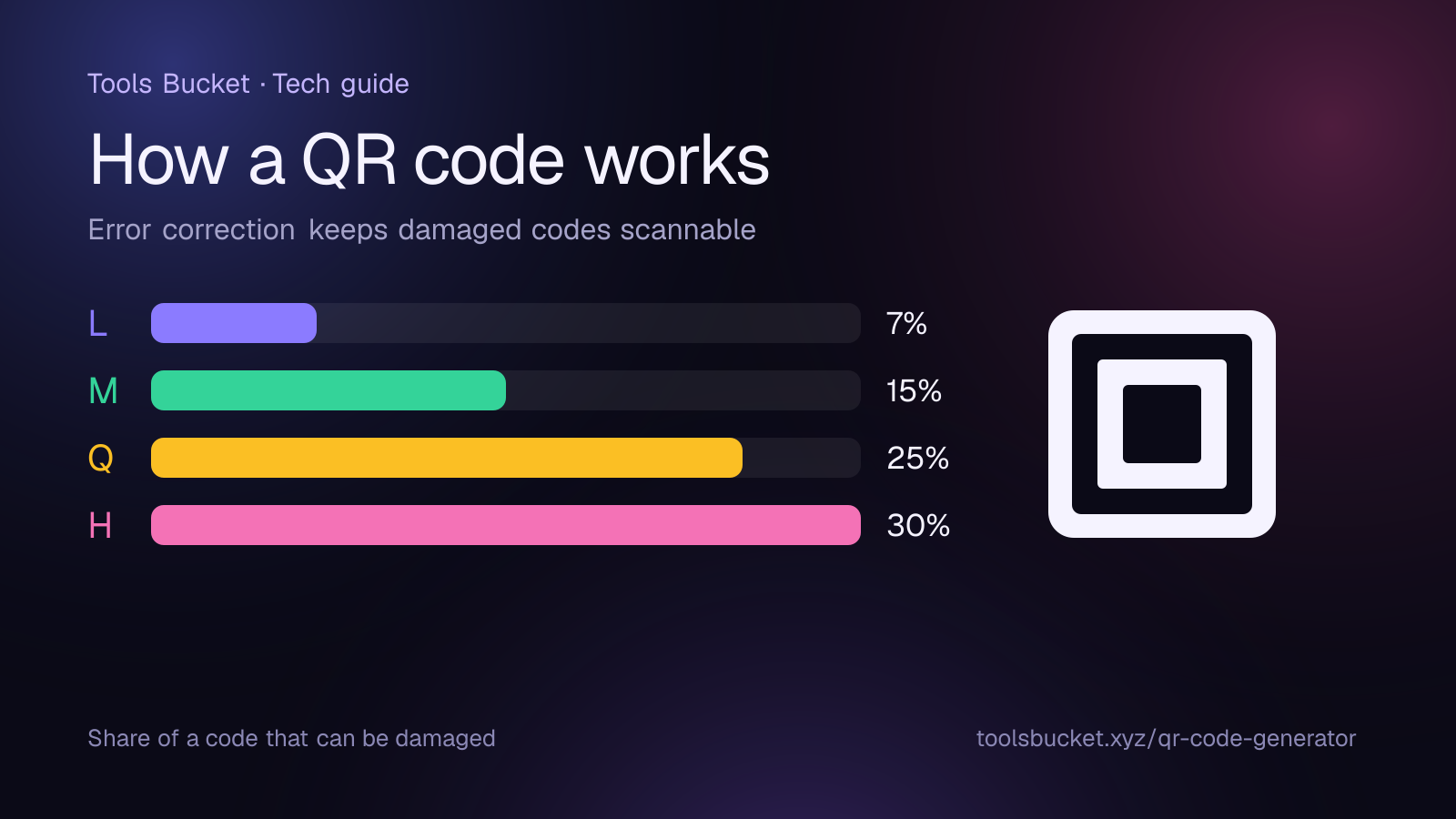
Every code includes backup information, so it can still be read when part of the code is dirty, torn or covered. There are four levels:
| Level | Share of the code that can be damaged | Good for |
|---|---|---|
| L (Low) | about 7% | Clean screens, maximum data |
| M (Medium) | about 15% | Everyday use: flyers, menus, packaging |
| Q (Quartile) | about 25% | Codes that may get dirty or worn |
| H (High) | about 30% | Codes with a logo placed over the middle |
Higher levels are more robust but make the code denser. Level M is a sensible default, and it's what the Tools Bucket QR code generator uses.
How to make a QR code for free
- Open our free generator.
- Paste a link or type any text: a website address, a Wi-Fi password, a phone number or a short message.
- Your code appears instantly as you type.
- Press Download PNG to save a high-resolution image, ready for print or screen.
- Scan it with your own phone before you print anything.
That last step matters more than any other. Test it on a couple of different phones, from the distance people will actually stand.
Static vs dynamic QR codes
A code made this way is a static code: your link or text is written directly into the pattern. It works without any account, never expires and keeps working forever, which is exactly what most people need.
Some paid services sell dynamic codes instead. Those contain a short link to the company's server, which then forwards visitors to your page. The upside is that you can change the destination later and see scan statistics. The downside is that if you stop paying, or the company shuts down, every printed code stops working. For a menu, business card or poster that will outlive a subscription, static is the safer choice. If you might change the page, point the code at a page on your own website and update that page instead.
Tips so your QR code actually gets scanned
- Keep the content short. A short URL produces a simpler, easier-to-scan code than a long tracking link.
- Make it big enough. About 2 × 2 cm (0.8 in) is a practical minimum for a business card. As a rule of thumb, people can scan a code from about ten times its width away.
- Use strong contrast. Dark code on a light background. Light codes on dark backgrounds and pale colors often fail.
- Leave the quiet zone empty. Don't let text or graphics touch the edges of the code.
- Say what it does. "Scan for the menu" gets far more scans than a bare code.
- Avoid shiny surfaces. Glossy lamination and glass reflect light straight back into the camera.
How to stay safe when scanning
Because a QR code hides where it leads, scammers have started sticking fake codes on parking meters and sending them in emails, a trick sometimes called "quishing". Before you open a link from a code, look at the web address your phone shows and make sure it's the site you expect. Be extra careful with any page that asks you to log in or pay. And as with any login, a unique, strong password limits the damage if you ever do get caught out.
Quick recap
- The code is a grid of modules with three corner squares that let it be read from any angle.
- Error correction lets a partly damaged code still work; level M suits most uses.
- Static codes store your data directly and never expire.
- Keep links short, print big enough, use strong contrast and leave a clear margin.
- Always scan-test your QR code before printing, and check where a code leads before you trust it.
Comments
No comments yet — be the first to share your thoughts.