Excel · How-to
How to Calculate Age in Excel and Google Sheets (DATEDIF Explained)
· By Tools Bucket Team · 3 min read
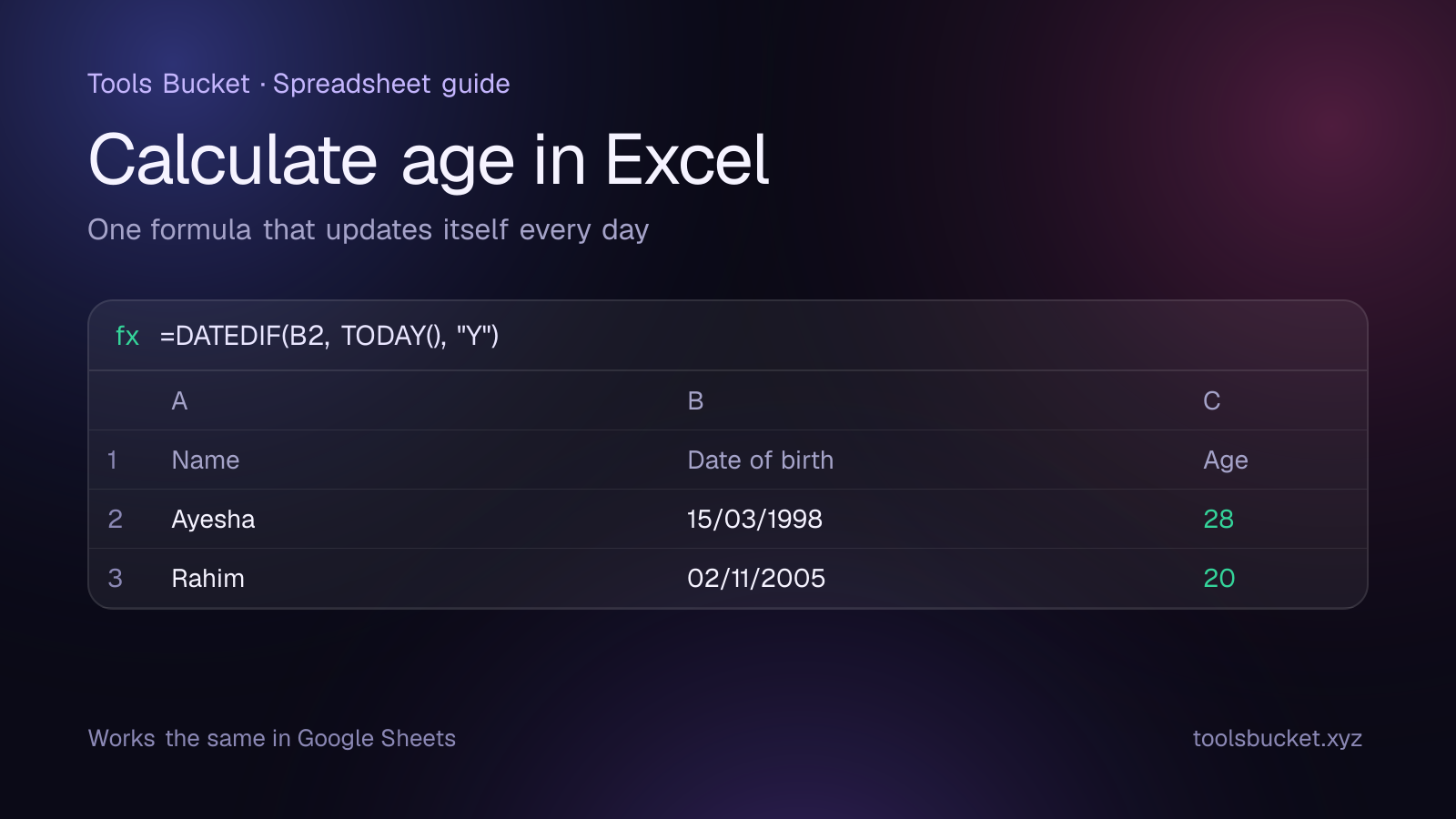
If you keep a list of employees, students, club members or customers, sooner or later you'll need their ages, and typing them by hand means they're wrong within a year. The good news is that it's easy to calculate age in Excel (and Google Sheets) with a formula that updates itself every day. Here are the formulas that work, from simple years to "28 years, 6 months, 10 days".
The quickest way to calculate age in Excel
Put the date of birth in a cell, say B2, and use:
=DATEDIF(B2, TODAY(), "Y")
- B2 is the date of birth.
- TODAY() is today's date, so the age updates automatically.
- "Y" asks for the number of complete years.
Someone born on 15 March 1998 shows as 28 on 25 September 2026, and ticks over to 29 on their next birthday.
DATEDIF is an older function kept for compatibility, so Excel doesn't suggest it as you type and it doesn't appear in the Insert Function list. It works anyway. Microsoft documents it on its DATEDIF support page.
Age in years, months and days
DATEDIF has other units you can combine:
| Unit | What it returns |
|---|---|
| "Y" | Complete years |
| "M" | Complete months in total |
| "D" | Days in total |
| "YM" | Months left over after the complete years |
| "MD" | Days left over after the complete months |
To show a full age such as "28 years, 6 months, 10 days":
=DATEDIF(B2,TODAY(),"Y") & " years, " & DATEDIF(B2,TODAY(),"YM") & " months, " & DATEDIF(B2,TODAY(),"MD") & " days"
One caution: Microsoft notes that the "MD" unit can give wrong results in some cases, especially around the end of long months. For anything official, double-check the days part, or show years and months only.
Age in days, weeks or months
- Days:
=TODAY()-B2(format the cell as a number, not a date). - Weeks:
=INT((TODAY()-B2)/7) - Months:
=DATEDIF(B2, TODAY(), "M")
Curious what your own number is? Our post on how many days old you are has some fun milestones to look out for.
Age on a specific date
Swap TODAY() for another date when you need someone's age on a deadline, such as the cut-off date for a school admission or a competition:
=DATEDIF(B2, DATE(2026,12,31), "Y")
DATE(year, month, day) avoids any confusion between day-first and month-first date formats. You can also point to a cell that holds the cut-off date, like =DATEDIF(B2, $E$1, "Y").
An alternative: YEARFRAC
Another popular formula is:
=INT(YEARFRAC(B2, TODAY(), 1))
YEARFRAC calculates the fraction of a year between two dates, and INT drops the decimals. It usually matches DATEDIF, but it can be a day out around birthdays in some leap-year cases, so DATEDIF with "Y" is the safer choice for ages.
Calculating age in Google Sheets
Google Sheets supports the same DATEDIF function with the same units, so every formula above works as-is. See Google's DATEDIF help page for details. Sheets also recalculates TODAY() automatically, so ages stay current whenever the sheet is opened.
Fixing common errors
- #NUM! means the date of birth is later than the end date. Check for typos like 2098 instead of 1998.
- #VALUE! usually means the date is stored as text, not a real date. This happens when a date is typed in a format your settings don't recognize (for example 25/09/1998 on a sheet set to US month-first dates). Re-enter it, or rebuild it with
=DATE(1998,9,25). - A strange five-digit number (like 36063, which is how Excel stores 25 September 1998) means the cell is formatted as a number. That's normal for "days" formulas; for dates, set the cell format to Date.
- Ages that don't update: make sure calculation isn't set to Manual (in Excel, Formulas → Calculation Options → Automatic).
Need one age, not a whole spreadsheet?
For a single person, a spreadsheet is overkill. Our free age calculator shows exact age in years, months, days, hours and even seconds, plus a countdown to the next birthday.
Quick recap
- Use
=DATEDIF(B2, TODAY(), "Y")for age in complete years. - Combine "Y", "YM" and "MD" for years, months and days (double-check the days part).
- Replace TODAY() with DATE(...) for age on a specific date.
- The same formulas work in Google Sheets.
- #VALUE! usually means a date saved as text; re-enter it or use DATE().
Comments
No comments yet — be the first to share your thoughts.